Slack Integration
Connect Slack, choose which channels Brief can read, and chat with Brief in direct messages and channels.
Connect Slack to ask Brief questions where your team talks and capture decisions in the conversation where they happen. Channel access settings control which channels Brief can read for ongoing learning. When you mention Brief in a channel, it may also use the surrounding Slack thread to answer that mention.
Connect Slack
A Brief workspace member can start a first Slack connection, but only a Brief workspace admin can save channel setup or change its settings. If you are not an admin, ask one to handle setup. An admin is also required to reconnect or disconnect an existing workspace connection.
- Open Integrations in Brief, find Slack, and select Connect.
- Choose your Slack workspace and authorize Brief.
- If Channels to learn from appears, review the preselected public channels and deselect any you do not want Brief to read. You can use Select all or Select none, then select Continue. You can still add a channel to Brief's reading scope by choosing it in the following invite step. Installs without workspace-wide channel history access go straight to the invite step.
- In Channels to invite Brief to, choose where the bot should join for channel interaction. Inviting Brief also lets it read that channel. You can invite Brief to up to 200 channels at once; this limit does not apply to the channels selected for reading in the previous step. Select the Invite Brief to button showing your channel count to save your choices, or Finish if you selected none to invite. Skip for now leaves channel setup unfinished so you can configure it later. You can also invite the bot to a channel from Slack with
/invite @Brief.
The first connection separates reading a channel from joining it. A selected private channel may be readable through the authorizing person's Slack access even if the bot is not a member. To interact with Brief in a channel, invite the bot there.
You can also start from Brief's listing in the Slack App Directory. Select Install and authorize the app. If you do not yet have a Brief account, the install flow takes you through signup and links your Slack workspace. Brief sends a welcome direct message after linking.
After connection, a Brief workspace admin can use Configure Slack to adjust Channel access and Channel classification separately. Access options are All public channels, Channels Brief has joined, and Only selected channels. You can exclude individual channels; channel exceptions are limited to 5,000. Brief can read only channels reachable with the authorized Slack account or bot; selecting a channel does not grant access by itself. Classification labels channels Customer, Product, Strategy, or Skip; changing a label does not grant channel access. Skip keeps a channel out of ongoing learning even if the access rule allows it. All public channels requires workspace read access from Slack. If that option is unavailable, ask a Brief workspace admin to reconnect Slack with the requested read permissions.
In Configure Slack, you can also set the optional Daily Pulse Channel for daily updates. Choose a channel or No notifications to leave channel updates off. Brief attempts to join a selected public channel; for a private channel, follow the /invite @Brief prompt if shown.
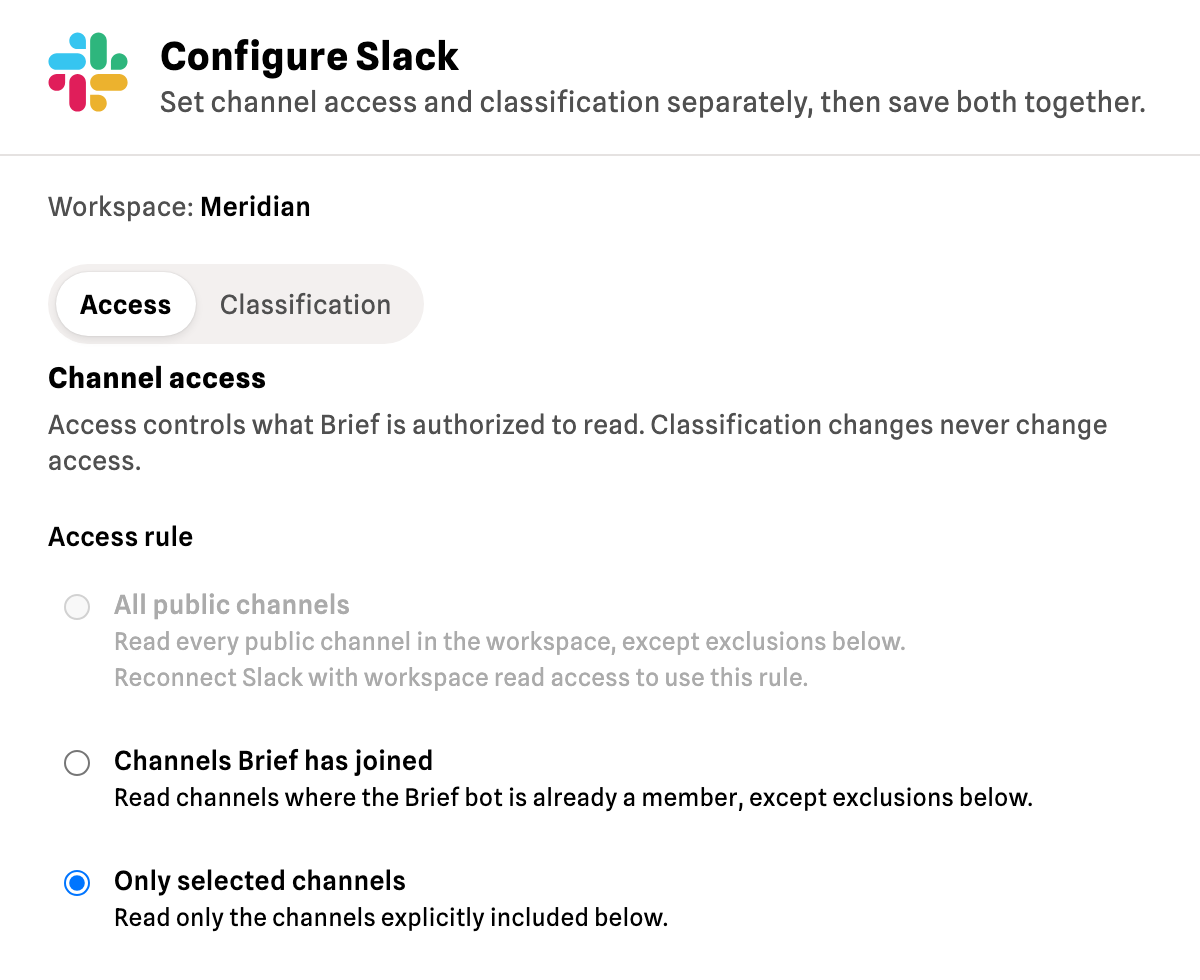
Brief may suggest classifications that you can correct. Brief starts a channel read after you save setup or configuration changes and reads enabled sources on a daily schedule. This is separate from replies when someone messages or mentions Brief in Slack. For ongoing analysis, Brief reads messages from the past 30 days. Each customer and product analysis run reads up to 30 channels; each strategy analysis run reads up to 20 Strategy channels. When more channels are eligible, Brief rotates through them across runs.
Chat in Slack
Send Brief a direct message, or mention @Brief in a channel where the bot is present. Channel replies use the surrounding thread as context. Brief keeps a separate conversation for each person in a Slack thread. In a mention, you can say "this channel" and Brief uses the channel you are in.
In a direct message, you can ask questions such as “What did we decide about authentication?”, “Summarize this document,” or “What shipped this week?” Brief keeps a continuing conversation for each person in a Slack workspace. If you send another message while it is answering, Brief queues it. Answers can stream in as Brief works and show progress or suggested follow-up actions. Use View in Brief to continue in the app. When reasoning is shown, See reasoning expands it.
If someone without a Brief account mentions the bot, Brief prompts them to sign up and does not answer the question immediately. Brief saves the request briefly and can answer it in the original thread after signup links their account. A person joining from another workspace through a shared Slack channel cannot use the installed workspace's Brief account through that channel.
You can ask Brief in a direct message to prepare a post for a Slack channel. Review the destination and full draft, then choose Confirm, Edit, or Cancel. A confirmed post identifies the sender through Brief when sender details are available.
You can attach images, PDFs, .docx, .xlsx, .pptx, text, CSV, and Markdown files to a direct message. The file limit is 20 MB. Brief can use images visually and extract text from documents, including scanned PDFs when text extraction needs it. If one attachment fails, Brief reports that file's problem and continues with usable attachments. Legacy .xls spreadsheets are not supported.
Direct-message commands
| Command | Use |
|---|---|
/brief-new | Start a fresh conversation, clearing the current chat context. |
/brief-clear | Clear the current conversation context. |
/brief-status | See message count, active conversation status, and last activity. |
/brief-model | See the current model and available models. |
/brief-model <model> | Change the model used for this Slack workspace. Use a model shown by /brief-model. |
Starting a fresh conversation does not delete decisions or documents saved in Brief. If Brief says the conversation is too long, use /brief-new and ask again.
Capture decisions in Slack
In a channel where Brief is present, enter /decide followed by a confirmed choice, for example:
/decide Use PostgreSQL for the new API because we need JSON queriesSlack shows a Decision Preview with the channel and author. Choose Confirm Decision to save it, Edit to revise the decision, rationale, tags, or lifecycle, or Cancel. A clear choice with a reason, such as “Launch without social login so we can ship this month,” is more useful than “We should do the thing.” Brief records the Slack author, channel, and time with the saved decision.
For a question that still needs a decision, enter /propose followed by the question. Review the Proposal Preview and choose Create Proposal, Edit, or Cancel. For example:
/propose Should we use Redis or PostgreSQL for sessions?You can also tell @Brief about a decision in a channel. Brief may propose a structured decision from the conversation for you to confirm or edit. In a direct message, a decision that emerges during chat may appear with Confirm, Edit, and Cancel actions. See Decisions for working with saved decisions.
The Slack bot's Home tab shows recent decisions and documents for a linked account and offers Chat with Brief. If it asks you to Link Account, follow that action first.
Permissions and common problems
Slack authorization asks for bot access to mentions, channel and direct-message history, messages, commands, files, link previews, reactions, and user identity. It also asks for user access to reachable public and private channels and Slack search. Channel access still depends on the account's Slack permissions and your choices in Brief.
- Brief does not answer in a channel: Invite the bot with
/invite @Brief, then mention it again. Channel reading permission alone does not make the bot a channel member. - Brief asks you to sign up or link an account: Complete the prompt using your Brief account. If Slack cannot expose your email, follow the message's account-linking guidance.
- A channel is missing or cannot be selected: Check that the authorized Slack account or bot can reach it. Ask a Brief workspace admin to reconnect with workspace read access if you need the All public channels rule.
- The connection has expired: Ask a Brief workspace admin to use Reconnect Slack from Brief's message or reconnect from Integrations. If a slash command is missing after installation, ask a workspace admin to check the Slack app installation and reconnect it.
- The wrong Slack workspace was connected: Ask a Brief workspace admin to disconnect Slack in Integrations. Then connect again and choose the intended workspace during Slack authorization.
See Chat tips and Integrations overview for related guidance.