Connect and manage tools
Connect tools to Brief, check connection health, and manage API keys.
Open Integrations from your workspace settings, or go to Integrations. The page has two tabs: Connect a Tool Into Brief for external tools and Connect Brief Into Another Tool for Brief apps and API keys.
Connect the tools that hold the work you want Brief to use. You can add more later, and you can choose the teams, repositories, pages, or other content shared by tools that offer a selection step.
Under Brief Apps on the second tab, choose Brief MCP to connect a coding agent, Brief CLI to work from your terminal, or Chrome Extension to use Brief in Chrome.
Connect a tool
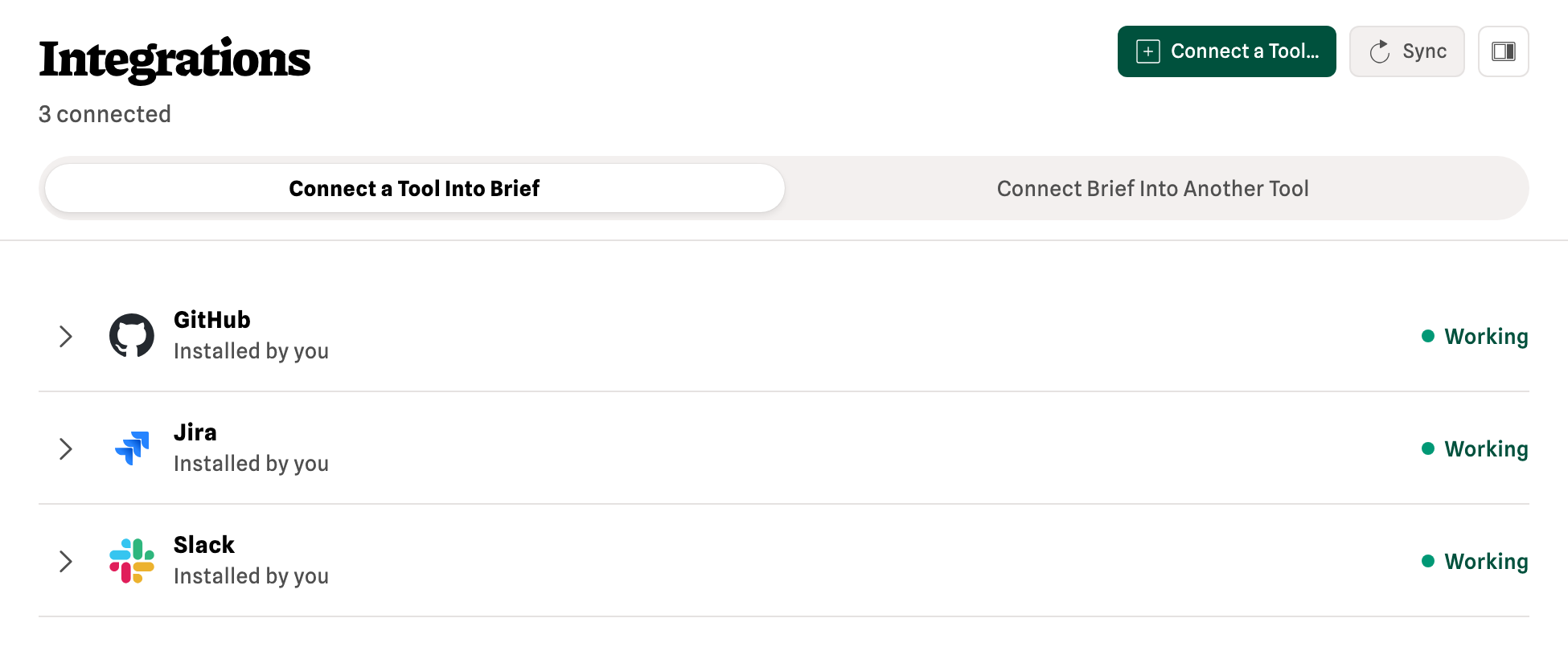
- On Connect a Tool Into Brief, select Connect a Tool….
- Choose one or more tools in the catalog, then select Done. Your choices appear in the Integrations list.
- Select Connect beside a tool and follow its authorization or setup steps. Some tools ask you to choose what Brief can access after authorization, such as Linear teams, GitHub repositories, Slack channels, or Miro boards.
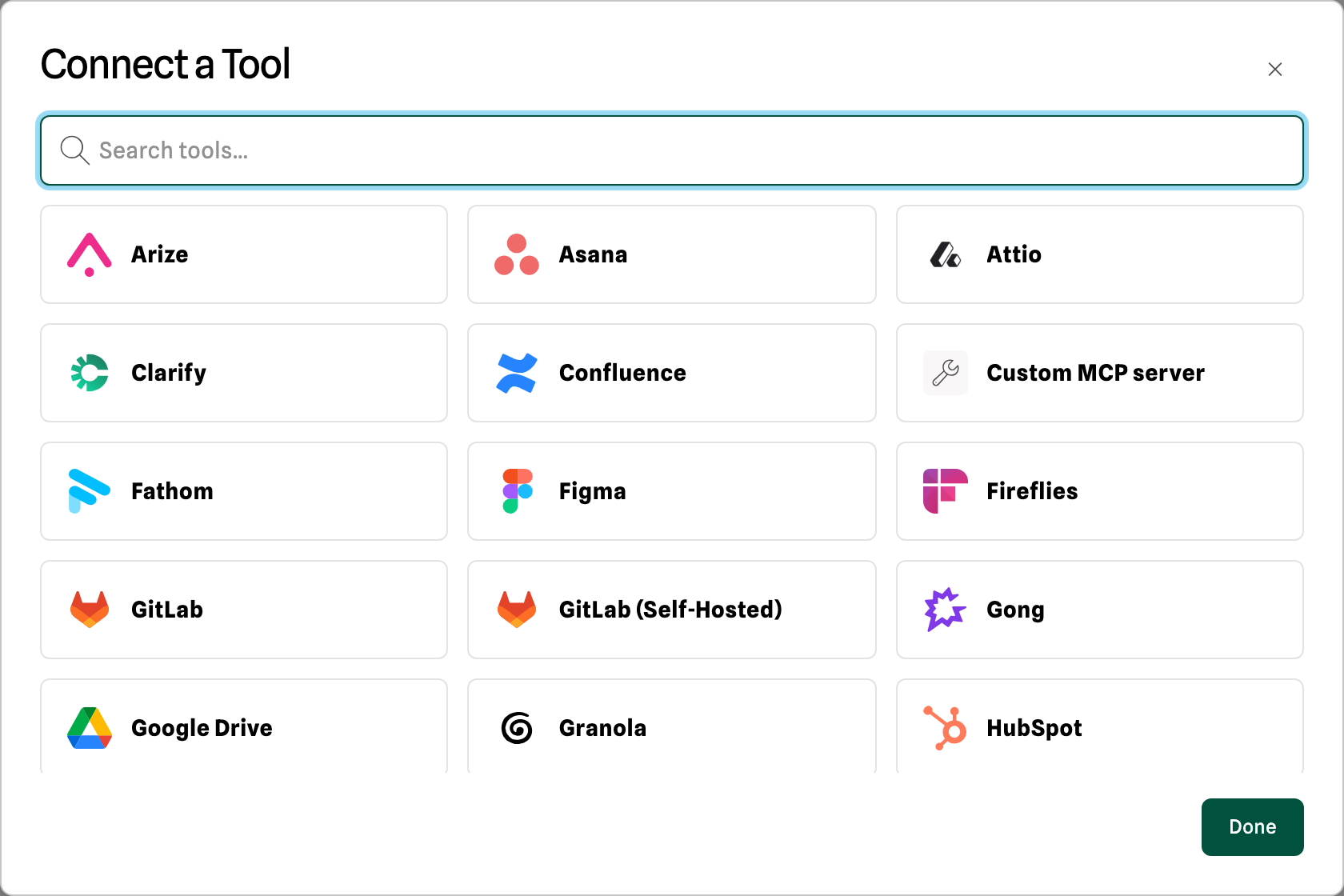
Use Search tools in the catalog to find a provider. Selecting a tool adds a Not connected row; it does not authorize access. You can uncheck a staged tool in the catalog before connecting it. If the page shows Nothing connected yet, start with Connect a Tool….
Finish the provider's setup
The next screen depends on the tool:
| Connection method | What you do | Examples |
|---|---|---|
| Account authorization | Sign in to the provider, grant access, then complete any content selection screen. | Linear, GitHub, Notion, Jira, Asana, Slack, Fathom |
| Provider credential | Create a credential in the provider, enter it in Brief, and save. Follow any additional setup screen. | Fireflies, PostHog, Mixpanel, Langfuse, Arize, Stripe, Lightfield |
| Guided database setup | Enter connection details and choose the database access Brief can use. | PostgreSQL, Supabase |
For example, the follow-up screen lets you choose teams in Linear, repositories in GitHub, projects in GitLab and Jira, workspaces in Asana, pages and databases in Notion, spaces in Confluence and Webex Messaging, channels in Slack, and boards in Miro. Complete that screen before expecting selected content in Brief. The individual guides below cover each provider's choices.
These provider credentials are separate from the Brief API keys on the other tab. Create a Brief API key when another app or a CI/CD workflow needs to authenticate to Brief.
Select a connected tool to see its connection details and health. A tool may have a Workspace Connection, a Personal Connection, or both. The workspace row names the person who installed it; your personal row describes your own access. Use the action on the affected row to Configure, Finish Setup, or Reconnect when offered.
Connected tools show Working, Needs attention, Unreachable, or Off. A tool you have added from the catalog but have not connected shows Not connected and a Connect button instead. Open a connected tool for the reason behind its status and the action available to you. Configure can change a content selection without removing the connection. A provider with one shared credential may show Personal Connection with Not required beneath it. If a shared connection needs repair and its row says Waiting on a named installer, ask that installer to open it. If it says Waiting on an admin, ask a workspace admin. Workspace connection changes are permission limited; an admin can disconnect a workspace connection.
Disconnecting your own personal connection leaves the workspace connection and your teammates' connections in place. Disconnecting a workspace connection removes access for the whole workspace, including members' personal connections. Read the confirmation before disconnecting.
What each connection provides
Connection behavior depends on the tool and the content you select during setup. Some tools supply sources for Brief to use over time. PostgreSQL and Supabase provide direct access from chat; Figma reads a design from a link you paste into chat. Do not use a fixed initial sync time as a sign that setup succeeded: check the connection's health and any remaining setup action instead.
Choose a source by the questions you want to ask:
| If you want context from… | Start with… |
|---|---|
| Issues, projects, and plans | Linear, Jira, Asana, or Miro |
| Code, pull requests, and merge requests | GitHub, GitLab.com, or GitLab (Self-Hosted) |
| Pages and files | Notion, Confluence, Google Drive, or SharePoint Online |
| Conversations and meetings | Slack, Webex Messaging, Fireflies, Fathom, Granola, Plaud, Gong, or Webex Meetings |
| Customer relationships and revenue | HubSpot, Attio, Clarify, Lightfield, or Stripe |
| Product analytics and AI usage | PostHog, Mixpanel, Langfuse, or Arize |
| A database or a design link in chat | PostgreSQL, Supabase, or Figma |
With Slack connected, you can also send Brief a direct message to chat or use /decide in a channel to capture a decision. See the Slack guide for both tasks.
Source connections can update after setup and on scheduled source runs; the schedule and available data depend on the provider and your selection. Notion and Confluence do not currently update from webhook events. Chat-only connections, including PostgreSQL, Supabase, and Figma, are read when you use them in chat rather than supplying a background source.
Database access
For PostgreSQL, enter the connection name, host, port, database, username, password, and SSL mode, then choose which tables Brief may query. Brief recommends a database user with read-only access. For Supabase, authorize your account, select one or more projects, then choose the tables for each project. Both setup screens state that unselected tables are inaccessible and queries are read-only. If Brief finds no tables, the screen warns that the connection will have no table restrictions; review the database permissions before proceeding. See the PostgreSQL and Supabase guides.
Manage API keys
On Connect Brief Into Another Tool, find API Keys and select New Key…. Enter a Name, choose Workspace or Personal under Scope, then select Create Key. A workspace admin must create and manage Workspace keys; any workspace member can create and manage their own Personal keys. A workspace key provides general workspace access. A personal key acts as you and can access your chats and connected tools. Copy and store the new key when Key Created appears; it will not be shown again.
In the key list, edit a name to rename a key. Select Revoke to disable a key immediately; anything using that key loses access.
Use the Personal scope for access tied to your account, or Workspace for access shared with the workspace. Save the secret in the app that will use it as soon as you create it. If you lose it, create another key and revoke the old one after updating that app.
Connector guides
The tools shown in Connect a Tool can vary by workspace. The catalog also offers Custom MCP server to connect your own tools. Explore connector guides by area:
| Area | Tools |
|---|---|
| Work management | Linear, Jira, Asana, Miro |
| Development | GitHub, GitLab (GitLab.com), GitLab (Self-Hosted) |
| Documents and design | Notion, Confluence, Google Drive, SharePoint Online, Figma |
| Communication | Slack, Webex Messaging |
| Meetings | Fireflies, Fathom, Granola, Plaud, Gong, Webex Meetings |
| Customer relationships | HubSpot, Attio, Clarify, Lightfield |
| Analytics | PostHog, Mixpanel, Langfuse, Arize |
| Billing | Stripe |
| Databases | Supabase, PostgreSQL |
SharePoint Online reads selected cloud sites and libraries; it does not connect to on-premises SharePoint Server. Zoom is listed as Coming very soon and cannot be connected by most customers yet.
If a connection needs attention, see Repair a tool connection.