Connect a coding agent to Brief
Connect Brief to Cursor, Claude Code, VS Code, Claude Desktop, Codex, or another MCP client.
Brief's remote MCP endpoint is https://app.briefhq.ai/mcp. Connect it in your client, sign in through your browser, then ask your agent to search Brief for a decision to verify the connection. This lets your agent find product context, check an approach against decisions, and propose a decision while you work. The connection uses your selected Brief workspace.
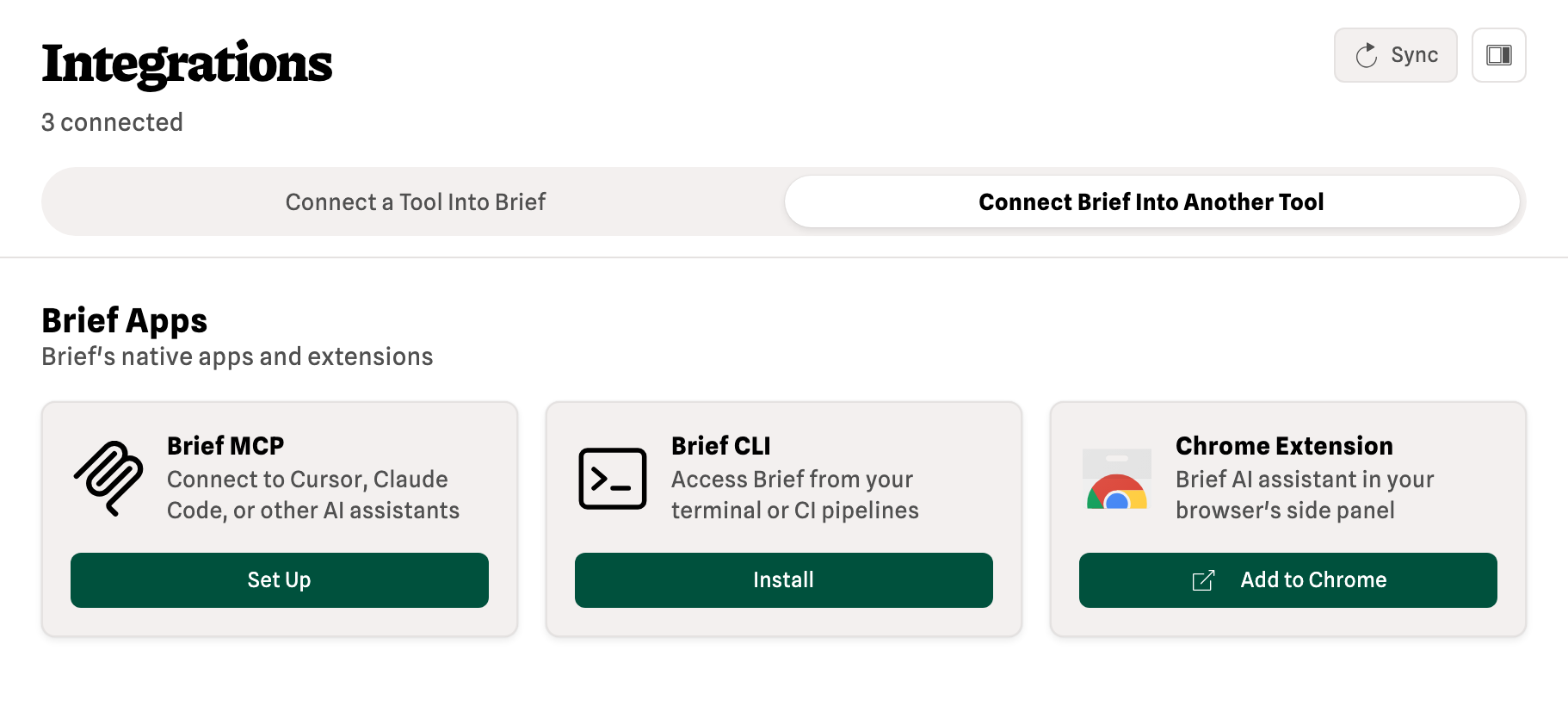
Open Integrations → Connect Brief Into Another Tool in Brief. Under Brief MCP, select Set Up for client-specific install instructions.
If you belong to several Brief workspaces, choose the one you want to connect in the Brief app before signing in from your MCP client. The supported connection uses Streamable HTTP and browser sign-in; you do not need to paste an API key.
Cursor
Use Add to Cursor in Brief's install instructions. For manual setup, add this to ~/.cursor/mcp.json:
{
  "mcpServers": {
    "brief": { "url": "https://app.briefhq.ai/mcp", "type": "http" }
  }
}
Sign in when Cursor prompts you. Then open a new chat in your coding project and follow Teach your coding agent to use Brief.
Claude Code
Run:
claude mcp add --transport http brief https://app.briefhq.ai/mcpIn Claude Code, run /mcp, choose brief, and sign in. Run claude mcp list to check the connection. Open a new Claude Code session in your project to add the agent guidance.
VS Code
Add this to your project's .vscode/mcp.json:
{
  "servers": {
    "brief": { "url": "https://app.briefhq.ai/mcp", "type": "http" }
  }
}
Open Copilot Chat in Agent mode and sign in when prompted on the first Brief tool call. Keep your project open as the workspace root when adding agent guidance.
Claude Desktop
On Pro or Max, open Customize → Connectors → + → Add custom connector and enter https://app.briefhq.ai/mcp. Leave Advanced OAuth fields blank, select Add, and sign in to Brief. In a Team or Enterprise workspace, an Owner first adds Brief under Organization settings → Connectors → Add → Custom → Web; members then connect it from Customize → Connectors.
Brief tools can return text when an interactive card is unavailable in Claude Desktop. If your client offers MCP prompts, start a new chat and run brief-setup. You can also ask Claude to call brief_get_onboarding_context directly.
Codex
Open Settings → MCP servers → Add server. Name it Brief, select Streamable HTTP, enter https://app.briefhq.ai/mcp, save, restart, and select Authenticate.
For manual setup, add this to ~/.codex/config.toml and run codex mcp login brief:
[mcp_servers.brief]
url = "https://app.briefhq.ai/mcp"
The desktop app, CLI, and IDE extension share this connection. Start a new task in your coding project to add agent guidance.
ChatGPT and other MCP clients
If your plan and workspace policy allow custom apps, add https://app.briefhq.ai/mcp as a custom remote MCP server in ChatGPT and complete browser sign-in. In another client, use its custom remote MCP setting. It must support Streamable HTTP and OAuth. Use the client's own connection status and a Brief tool call to verify setup.
After connecting
For a coding project, follow Teach your coding agent to use Brief to add project guidance. Brief MCP and Brief CLI are separate ways to reach the same workspace.
Use brief_ask for a product question and brief_search for a targeted lookup. brief_ask accepts mode: "advise" for open-ended advice, mode: "check" to review a proposal, and mode: "fast" for a quick answer. It continues the current coding-session conversation by default; pass conversation_id to continue a specific one, or new_conversation: true to start over. Fast answers do not maintain that conversation history.
Standard brief_ask calls are limited to 20 per hour per user. If you reach the limit, the error tells you how long to wait before retrying. Search returns documents the connected user can access; if an expected document is missing, check that you connected the intended workspace and that your account has access to the document.
Try asking your agent “What decisions have we made about authentication?”, “Who is this feature for?”, or “Check this proposed approach against our existing decisions.” These are example requests; your answer will come from your own workspace. To record an agreed choice, ask it to draft the decision text. If your client shows a decision approval card, review the card before approving it. Otherwise, review the text and explicitly tell the agent to record it; recording through brief_write_operation saves it immediately.
Recording a decision requires write access. By default, OAuth connections have read access. If a write is denied, reauthorize your MCP client and request write access if the client supports it. A read-only connection cannot record the decision.
For a long brief_ask turn, your client may receive a processing response with request_id, conversation_id, mode, and expires_at. To fetch the same turn, call brief_ask again with both IDs, the same mode, and recovery_expires_at set to the returned expires_at. Omit question and stop retrying after that expiry.
If your client offers Brief prompts, brief-setup starts a first connection, brief-welcome-back helps you return on a new client, and brief-context can focus on strategy, personas, decisions, or features. You can always ask for the corresponding tool directly when prompts are not shown.
Tools to try
Brief exposes 21 public MCP tools. Cursor receives the full list; its former four-tool limit has been removed.
Tool descriptions state what each tool does, its parameters, side effects, permissions, and returns. Session-start guidance, tool routing, decision-writing rules, and waiting for approval cards live in the MCP session instructions and plugin skills.
brief_get_onboarding_contextloads a workspace overview. Usescope: "identity"for workspace identity,scope: "product"for product context, orscope: "full"for the full overview (the default whenscopeis omitted).brief_searchfinds decisions, documents, features, and other workspace content. Passtypes: "decision"to limit a search to decisions.brief_askanswers product questions and can check a proposed approach.brief_list_document_commentsreads comments;brief_create_document_commentadds a comment or reply. Search or browse for the document ID first. A comment can include a passage quote, and a reply can use the parent comment ID.brief_show_relevant_promptsoffers questions to start with when your client supports interactive panels.brief_browseopens folders and documents, andbrief_list_pending_decisionslists decisions awaiting confirmation.brief_propose_decisioncreates a decision proposal.brief_record_decisionsubmits a decision for approval.brief_confirm_decision,brief_reject_decision, andbrief_archive_decisionhandle existing decisions.brief_get_integration_statusandbrief_get_integration_bucketshelp check available connections;brief_show_integrationscan show connect options.brief_update_product_contextupdates selected product context fields. Read the current values first and see the tool guidance before changing them.brief_read_operationsupports 21 read-only workspace operations. Use it for reads without a dedicated tool. Examples:get_document,get_folder_tree,search_decisionswithisolation_key,get_personas,get_features,list_positioning_suggestions,guard_approach, andsearch. It requiresmcp:read.brief_write_operationsupports 30 write operations. Use it for writes without a dedicated tool. Examples:create_document,update_document,delete_document,record_decision,create_persona,update_feature, andapprove_positioning_suggestion. It creates, updates, archives, or deletes workspace data within your permissions and requiresmcp:write. Decision writes through this tool save immediately without an approval card.brief_report_progressandbrief_report_completionreport progress and completion.
Both operation tools take an operation selected from that tool's enum and a parameters object. The read tool rejects write operations.
Use the brief_* names shown by your client. For tools from your own server inside Brief Chat, see Connect a custom MCP server.
Troubleshooting
Brief does not appear in your client's tools: Check the URL and the client's config location above, then restart the client. For Claude Code, run claude mcp list; for Codex, check Settings → MCP servers. Brief's endpoint is /mcp; a client configured for an older SSE endpoint will not connect.
Sign-in failed or the session expired: Retry authentication in your client. In Claude Code, use /mcp and choose brief; in Codex, run codex mcp login brief. In Cursor or VS Code, invoke a Brief tool to reopen browser sign-in. In Claude Desktop, reconnect the custom connector and sign in again.
The agent cannot find a tool: Ask it to use the brief_* name shown in its tool picker. If none appear, check the MCP connection first. If the tools work but the agent does not use them during product work, add the project instructions and start a new conversation.
Brief shows the wrong workspace: Select the intended workspace in the Brief app, then reconnect and sign in again from your MCP client. Verify by calling brief_get_onboarding_context with scope: "identity".